

Recover iPhoto Library on Mac OS X:
If you lose photos from an iPhoto library on your Mac, or If your iPhoto library appears unreadable, is missing photos or thumbnails. don't panic. The iPhoto software allows you rebuild your photo library. This process rebuilds the structure of the library, scans and repairs disk permissions, and is useful for recovering orphaned photos.This process will only works when there is problem in iPhoto library file structure but if you have accidentally deleted photos from iPhoto library or deleted iPhoto library itself then to recover iPhoto library you have to look for other option. For this, A professional iPhoto recovery software is the good choice. Software is able to recover corrupted, deleted, lost photos from iPhoto library or deleted, corrupted, lost iPhoto library itself.
Awards:




Tips for successful iPhoto Library Recovery:
- Do not use the drive or volume further after the deletion of data.
- Never download or install any data recovery software on the same volume or drive. We highly recommend you intstall the it on another partition. If there is only 1 partition on your Mac computer, you can install it on a removable device.
Recover Lost or deleted photos from iPhoto application with Mac data recovery software:
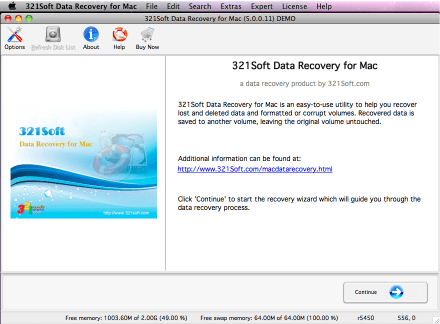
Step 1: Launch 321soft Mac data recovery, then click Continue buttom:
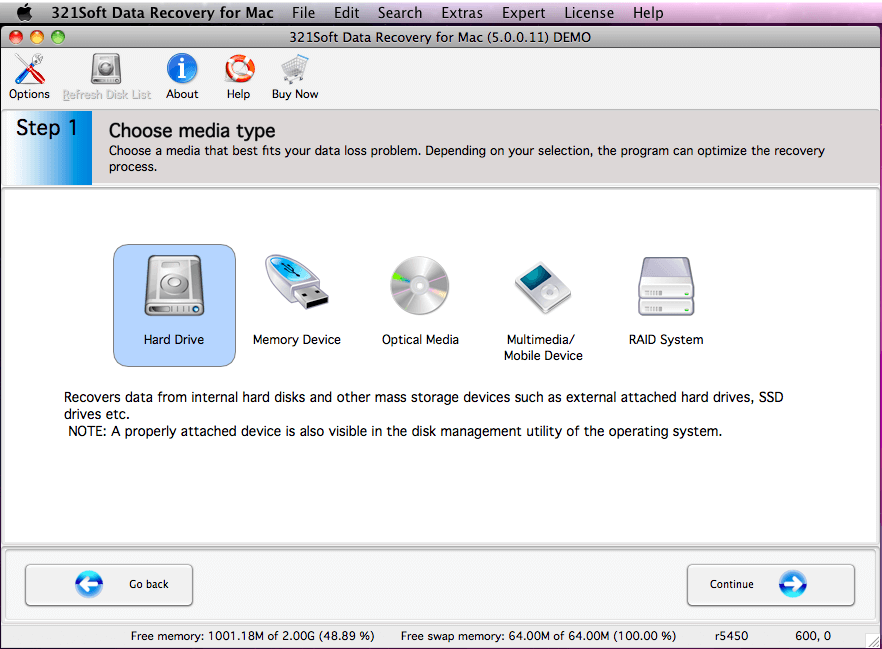
Step 2: Click the"Hard Drive" icon, and click on “Continue” button to proceed.
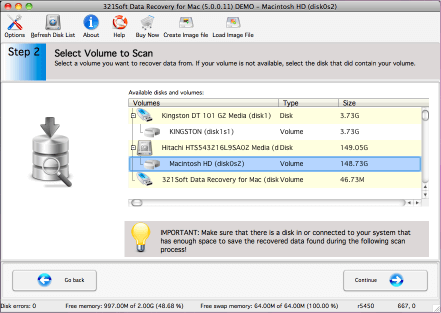
Step 3: Select volume or drive where your lost data located.
Step 4: Select a recovery mode and check "RAW scan" option.
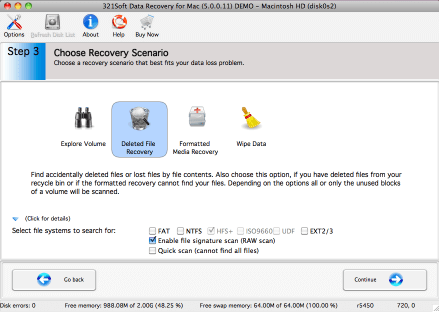
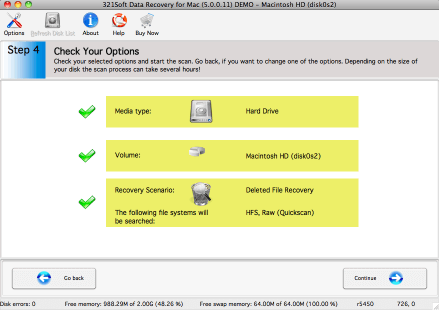
Step 5: Check your selected options. If you are satisfied with your options, click the "Continue" button to start scanning for files.
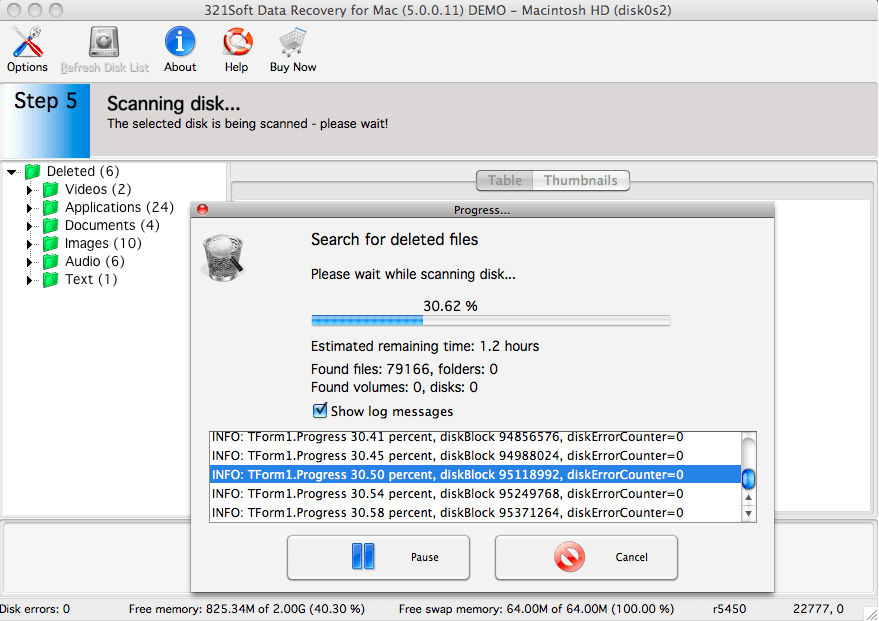
You will see the scan progress in the progress bar below. Please wait till the process is completed.
Step 6: Preview and save the recoverable photos, To save the photos, you would select the photos on the right side of the screen and click the "Save" icon in the tool bar.
To select multiple photos either use the Shift key (to select several photos in succession) or the Ctrl key (to select individual files) of your keyboard. If you wish to select all items in the file list, choose Select all from Edit menu.
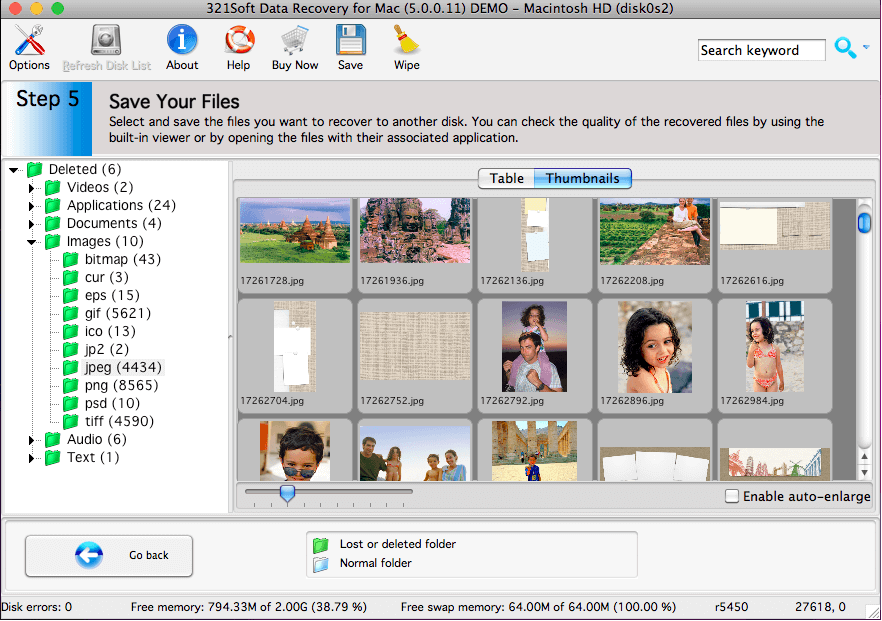
Caution: The scan results are temporary in memory. If you click the "Go Back" button, the scan results will be lost.
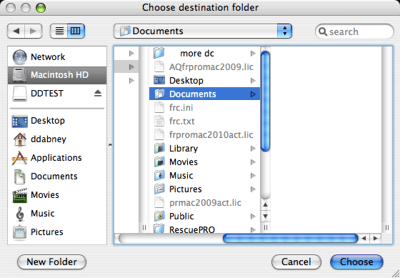
A typical save dialog will be displayed, and you will be able to recover your deleted photos to another storage device or another drive letter in the system.
Ready to Recover iPhoto Library on Mac? Just click the button below and begin recover your photos!
Find out why we're ranked #1
Ready to recover your files and folders? Download the Free version Now!


